Dashboard manual

The tray menu

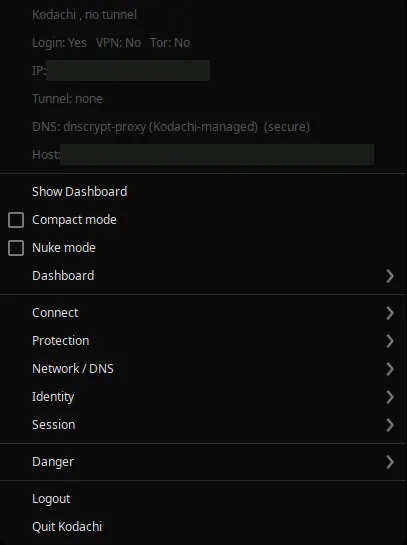
Left-clicking the tray icon hides the window, so for a lot of daily use this menu is the dashboard. It carries its own copy of the controls that matter, it reports the machine’s state in six readings at the top, and it can connect a tunnel, route the system through Tor, change your hardware address, wipe browser data or shut the machine down while the window is nowhere on screen.
System trayNo window needed91 rowsRead from the source
Why there is no walkthrough here The tray menu has no web page behind it. It is built in the application’s Rust, as a native menu the desktop draws, so there is nothing for this manual’s capture harness to photograph or measure: every other page here is a real render of a real screen, and this one cannot be. The rows below are read directly out of the source that builds the menu, each explanation is the description of the command that row runs where the product has one, and a check in the build refuses if that source changes and this page does not.
The menu itself, 16 rows

The first six rows are readings, not controls: they are disabled by design and carry the live login, VPN, Tor, IP, tunnel, DNS and identity state so you can check the machine without opening anything. Everything below them acts.

#ControlWhat it does
1Kodachi , checking...The first reading: the application name and its overall state, rewritten on every status tick. It is disabled because it is a label, not a control.
2Login: ... VPN: ... Tor: ...Login, VPN and Tor state on one line. Disabled: it reports, it does not act.
3IP: checking...Your public address as the last probe saw it. Disabled: a reading.
4Tunnel: checking...Which tunnel is up, if any, and through what. Disabled: a reading.
5DNS: checking...Which resolver is answering and whether it is encrypted. Disabled: a reading.
6Host: ... MAC: ... TZ: ...Host name, hardware address and timezone as the machine currently presents them. Disabled: a reading.
, , ,
8Show DashboardBrings the window back. Left-clicking the tray icon hides it, and this is the way to get it on screen again.
9DashboardsubmenuOpens the Dashboard group below.
, , ,
11ConnectsubmenuOpens the Connect group below.
12ProtectionsubmenuOpens the Protection group below.
13Network / DNSsubmenuOpens the Network / DNS group below.
14IdentitysubmenuOpens the Identity group below.
15SessionsubmenuOpens the Session group below.
, , ,
17DangersubmenuOpens the Danger group below.
, , ,
19LoginSigns in again, or signs in for the first time. Most rows in this menu are skipped while the session is not authenticated.
20Quit KodachiQuits the application. Tunnels and routing the backend services hold stay as they are; only the dashboard closes.
Dashboard, 4 rows

Opens one of the startup surfaces in the window. These change nothing on the machine. The same controls, with their pictures, are on this page of the manual.

#ControlWhat it does
1Launcher (Simple)Opens the simple Quick Launch picker inside the window.
2Advanced SetupOpens the Advanced setup screen inside the window: readiness, launch settings, pairing, About and Terms.
3AutoShieldOpens AutoShield inside the window, the boot automation you can arm to run at every start. It is an in-page overlay, not a separate window.
4Setup WizardOpens the Routing Guide, the wizard that recommends a protocol mix for what you are trying to do.
Connect, 16 rows

One row per protocol routing-switch accepts, drawn as a radio because the tick is a real probe off routing-switch status rather than a guess. Auto-select picks by a static score table, not by measuring your network now. The same controls, with their pictures, are on this page of the manual.

#ControlWhat it does
1Auto-select best protocolAutomatically test all available protocols and connect to the best performing one. Uses protocol scoring to find the optimal connection runs routing-switch auto-select
, , ,
3WireGuardone of a setConnects with {proto}. One of a set: the tick marks the protocol a probe of routing-switch found active, and choosing another asks routing-switch to reconnect with it.
4Hysteria2one of a setConnects with {proto}. One of a set: the tick marks the protocol a probe of routing-switch found active, and choosing another asks routing-switch to reconnect with it.
5OpenVPNone of a setConnects with {proto}. One of a set: the tick marks the protocol a probe of routing-switch found active, and choosing another asks routing-switch to reconnect with it.
6AmneziaWGone of a setConnects with {proto}. One of a set: the tick marks the protocol a probe of routing-switch found active, and choosing another asks routing-switch to reconnect with it.
7OpenVPN over Cloakone of a setConnects with {proto}. One of a set: the tick marks the protocol a probe of routing-switch found active, and choosing another asks routing-switch to reconnect with it.
8Shadowsocksone of a setConnects with {proto}. One of a set: the tick marks the protocol a probe of routing-switch found active, and choosing another asks routing-switch to reconnect with it.
9V2Rayone of a setConnects with {proto}. One of a set: the tick marks the protocol a probe of routing-switch found active, and choosing another asks routing-switch to reconnect with it.
10Xray , VLESSone of a setConnects with {proto}. One of a set: the tick marks the protocol a probe of routing-switch found active, and choosing another asks routing-switch to reconnect with it.
11Xray , VLESS Realityone of a setConnects with {proto}. One of a set: the tick marks the protocol a probe of routing-switch found active, and choosing another asks routing-switch to reconnect with it.
12Xray , Trojanone of a setConnects with {proto}. One of a set: the tick marks the protocol a probe of routing-switch found active, and choosing another asks routing-switch to reconnect with it.
13Xray , VMessone of a setConnects with {proto}. One of a set: the tick marks the protocol a probe of routing-switch found active, and choosing another asks routing-switch to reconnect with it.
14Mieru (Mita)one of a setConnects with {proto}. One of a set: the tick marks the protocol a probe of routing-switch found active, and choosing another asks routing-switch to reconnect with it.
15Dante (SOCKS5)one of a setConnects with {proto}. One of a set: the tick marks the protocol a probe of routing-switch found active, and choosing another asks routing-switch to reconnect with it.
16Tor (redsocks)one of a setConnects with {proto}. One of a set: the tick marks the protocol a probe of routing-switch found active, and choosing another asks routing-switch to reconnect with it.
, , ,
18DisconnectSafely disconnect from all proxy protocols and restore direct internet access. Your traffic will no longer be encrypted through external servers runs routing-switch disconnect
Torrify, 5 rows

Send the whole machine through Tor, and the DNS half separately. Detorrify is the way back, and nothing is anonymised once it runs. The same controls, with their pictures, are on this page of the manual.

#ControlWhat it does
1System via Tor (single instance)Route ALL system traffic through Tor using modern nftables firewall. Provides the same anonymity as iptables with better performance runs tor-switch torrify-system-nftables
, , ,
3Tor DNSA tick that reports whether DNS lookups go through Tor. Clicking it starts or stops Tor DNS with nftables.
4Start Tor DNSRoute DNS through Tor DNS nftables and verify tunnel DNS encryption runs tor-switch start-tor-dns-nftables
5Stop Tor DNSStop sending DNS queries through Tor and remove the nftables DNS rules\nCmd: sudo tor-switch stop-tor-dns-nftables runs tor-switch stop-tor-dns-nftables
, , ,
7Detorrify systemTakes the whole machine back off Tor. Two commands run in order: the nftables rules that route everything through Tor are removed first so connectivity comes back, then the legacy iptables rules are cleaned up. Nothing is anonymised once it has run. runs tor-switch detorrify-system-nftables, then detorrify-system-iptables
Tor daemon, 6 rows

The Tor service itself, and circuit rotation. A new circuit changes the exit, never who you are signed in as. The same controls, with their pictures, are on this page of the manual.

#ControlWhat it does
1Start TorStart the Tor anonymity service. This enables you to use the Tor network for anonymous browsing and communication runs tor-switch start-tor
2Stop TorStop the Tor service completely. All Tor connections will be terminated and the daemon will shut down runs tor-switch stop-tor
3Restart TorStop and restart the Tor daemon. Useful when configuration changes need to be applied or when Tor becomes unresponsive runs tor-switch restart-tor
, , ,
5New Tor CircuitRequest a new Tor circuit to get a different exit IP address. Your traffic will be routed through different relay nodes runs tor-switch new-tor-circuit
6New Circuit, All InstancesCreate new circuits for all running Tor instances simultaneously. Useful when running multiple instances for load balancing runs tor-switch new-tor-circuit-all
, , ,
8Clear Exit NodeRemove all exit node country restrictions. Tor will choose exit nodes based on performance and availability runs tor-switch clear-exit-node
Auto IP change, 4 rows

Rotate the Tor circuit on a timer. Useful for anonymity, awkward for anything holding a session open. The same controls, with their pictures, are on this page of the manual.

#ControlWhat it does
1Every 10 minutesAutomatically request new Tor circuits at regular intervals to keep changing your exit IP address. Good for enhanced anonymity runs tor-switch auto-ip-change 10m
2Every 30 minutesRequests a new Tor circuit every thirty minutes. The exit changes each time; who you are signed in as does not. runs tor-switch auto-ip-change 30m
3Every hourRequests a new Tor circuit every hour. The exit changes each time; who you are signed in as does not. runs tor-switch auto-ip-change 1h
, , ,
5OffDisable automatic IP rotation. Your Tor circuit will remain stable until manually changed runs tor-switch stop-auto-ip-change
Protection, 8 rows

The three at-a-glance states, the routing submenus, and the blunt internet cut. The tick boxes report what is on; they are not a wish list. The same controls, with their pictures, are on this page of the manual.

#ControlWhat it does
1VPNA tick that reports whether a tunnel is up. Clicking it connects with the current protocol or disconnects; the tick moves when the machine answers.
2System via Tor (load balanced)A tick that reports whether the whole system is routed through Tor with load balancing. Clicking it torrifies or detorrifies the system.
3System hardenedA tick that reports whether system hardening is applied. Clicking it applies the standard hardening profile or recovers from it.
, , ,
5TorrifysubmenuOpens the Torrify group below.
6Tor daemonsubmenuOpens the Tor daemon group below.
7Auto IP changesubmenuOpens the Auto IP change group below.
, , ,
9Block InternetCAUTION: Block ALL internet traffic using the best available method (auto-detects nftables/iptables/ufw). All outbound connections will be dropped immediately. Use Unblock to restore runs health-control block-internet
10Unblock InternetClear all internet blocking methods runs health-control unblock-internet
DNS category, 4 rows

Which pool a random DNS server is drawn from. The same controls, with their pictures, are on this page of the manual.

#ControlWhat it does
1ReputableMost-used encrypted DNS commands (25 items) runs dns-switch switch --category reputable
2NormalMost-used encrypted DNS commands (25 items) runs dns-switch switch --category normal
3FallbackMost-used encrypted DNS commands (25 items) runs dns-switch switch --category fallback
4Remotely fetchedMost-used encrypted DNS commands (25 items) runs dns-switch switch --category remotely_fetched
Network / DNS, 11 rows

Encrypted DNS, filtering, and the recovery actions for when the network stops working. The same controls, with their pictures, are on this page of the manual.

#ControlWhat it does
1Switch to DNSCryptPoints the system resolver at DNSCrypt, so every DNS lookup leaves the machine encrypted and authenticated instead of in plain text. The fallback and category rows below choose which servers; this row chooses the transport. runs dns-switch switch --names dnscrypt
2Pi-holeA tick that reports whether Pi-hole filtering is on. Clicking it enables or disables the filter for every application, not only the browser.
, , ,
4Use Random DNS ServerRotate between different DNS providers so no single provider can build a complete profile of your browsing history. Prevents DNS-level tracking by distributing queries across multiple resolvers runs dns-switch random
5Fallback DNSSwitch to the fallback resolver set, the one to reach for when name resolution is broken\nCmd: sudo dns-switch fallback runs dns-switch fallback
6DNS categorysubmenuOpens the DNS category group below.
, , ,
8Fix DNSRepair broken DNS resolution when websites fail to load after switching DNS modes, toggling VPN, or changing network configuration. Runs health checks and fixes only the stages that are actually broken runs dns-switch fix-dns
9Restart DNSCryptRestart DNSCrypt proxy without removing config runs dns-switch dnscrypt-restart
10Clean DNS Temp FilesRemoves the temporary files the DNS service leaves behind. Housekeeping, not a change to how names are resolved. runs dns-switch clean
11Restore Default DNS...Reset DNS settings to system defaults. Removes any custom DNS configurations and returns to automatic DHCP-provided DNS runs dns-switch restore-default
, , ,
13Recover Network RoutingRecover routing stack after failed connect/disconnect runs routing-switch recover
14Recover Internet ConnectionRun full internet recovery sequence (no force mode) runs health-control recover-internet
Identity, 8 rows

What the local network can use to recognise this machine: hardware address, host name, clock. The same controls, with their pictures, are on this page of the manual.

#ControlWhat it does
1Rotate Identity Now...Most-used identity commands (9 items) runs health-control mac-change-all
, , ,
3Randomize MAC AddressesMost-used identity commands (9 items) runs health-control mac-change-all
4Force Randomize MACs...Force randomize MAC by disabling every interface first, so VPN and Tor protection goes down and is not restored: reconnect afterwards. Use when a normal MAC change fails due to driver restrictions runs health-control mac-force-change
5Reset All MACs...Restore the original hardware MAC addresses\nCmd: sudo health-control mac-reset-all runs health-control mac-reset-all
, , ,
7Randomize HostnameSet random hostname runs health-control set-random-hostname
8Restore Default HostnameHostname randomization by category runs health-control set-default-hostname
, , ,
10Randomize TimezoneSet random timezone runs health-control set-random-timezone
11Match Timezone to Exit CountrySync timezone from remote IP runs health-control sync-timezone
Session, 4 rows

The window and the desktop, not the machine. Close to tray is what makes this menu the whole interface. The same controls, with their pictures, are on this page of the manual.

#ControlWhat it does
1Lock ScreenLock screen immediately. Applications continue running runs health-control lock-screen
, , ,
3Conky desktop widgetShows or hides the Conky desktop widget, the always-on status panel drawn on the desktop itself.
4Compact modeShrinks the window to its compact layout, or restores the full one.
5Close to trayWhen on, closing the window hides it to the tray instead of quitting. This is the setting that makes the tray menu the whole interface.
Danger, 5 rows

Every row here is destructive and every one ends in an ellipsis, which is the menu telling you a confirmation follows. The same controls, with their pictures, are on this page of the manual.

#ControlWhat it does
1Panic Soft...⚠️ IMMEDIATE: Kills all network connections, clears clipboard, and locks screen. Reversible by restarting network services. Use for quick privacy protection runs health-control panic-soft
2Wipe Browser Data...Wipe browser data for all browsers runs health-control wipe-browser-data
3Clean Memory...Change memory and swap state on this machine, rather than report it (6 items) runs health-control memory-clean
4Wipe Logs...Most-used wipe commands (15 items) runs health-control wipe-logs
, , ,
6Shutdown System...Shuts the machine down after a confirmation in the window. Every row in this group ends in an ellipsis for that reason.

The tick boxes are readings, not switches you set. A tick next to VPN, Tor or a protocol means a probe found it on. Clicking one asks for the change; the tick moves when the machine answers, not when you click.

An ellipsis means a confirmation follows. Every row in the Danger group ends in one, and so do the identity rows that force a change. Nothing in that group acts on the click alone.

Nine of these rows finish in the window. They open a confirmation there rather than acting from the menu, so the tray will bring the window forward for those even though it hid it a moment ago.